
Events, Appointments, and Meetings
ATEND distinguishes three kinds of calendar-aware entries — events, appointments, and meetings — and handles each differently. Understanding the difference determines where things appear, how they affect your time strip, and what the system does about them before and after they happen.
The three types at a glance
| Type | What it is | Appears on time strip | Has buffer zones | Has a duration | Requires completion |
|---|---|---|---|---|---|
| Reminder / Event | A date to be aware of — birthday, deadline, milestone. No action required unless you choose to create one. | No | No | No | No |
| Appointment | A time-specific commitment with a service provider or institution. You are a recipient of a service. Missing it has consequences for someone else. | Yes | Yes | Yes | No |
| Meeting | A time-specific collaborative engagement where all parties are active participants. Behaves identically to an appointment in the current version. | Yes | Yes | Yes | No |
The practical distinction that matters most is between reminders/events and appointments. A reminder doesn't consume time on your time strip and doesn't create buffer zones — it's pure awareness. An appointment does both: it occupies a block of time, surrounds itself with buffers, and the fit score algorithm won't schedule an ambitious task into the 10 minutes before you need to leave for the dentist.
Reminders and events
An event — or reminder, as it's labeled in the inbox processing flow — is a date you want to be aware of with no obligation attached. Sarah's birthday. The registration renewal coming up in three weeks. Thanksgiving. The start of a new fiscal quarter. These are dates that carry meaning but require no completion, no time block, no action unless you choose to create one.
Creating a reminder
From the inbox processing flow, choose Reminder. You set a title (editable from the capture text), a date, an optional hat, and how far in advance you want to be notified. Multiple notification offsets are supported — a birthday might notify you 14 days out, again 7 days out, again the day before, and on the day itself.
The action prompt
When you create a reminder, you're asked: "Ask me if I want to do something for this?" If you say yes, the notification that fires before the date will include: "Sarah's birthday is in 7 days. Want to add anything for it?" Tapping "Add a task" opens the capture sheet pre-filled with context. The resulting task is processed normally through the inbox.
This is the mechanism for converting awareness into action — you don't need to decide at reminder-creation time whether you'll do anything. The system reminds you when the date is approaching and asks then, when the decision is more concrete.
Recurring reminders
Birthdays and anniversaries recur annually by default. When the system detects a name plus "birthday" pattern in a reminder title, it pre-selects annual recurrence. You can override this. The recurrence is stored as an annual rule on the event record — the reminder fires every year without any action from you.
Reminders linked to contacts are handled slightly differently. When you create a contact with a birthday or anniversary, those dates automatically generate recurring annual reminders. You don't need to create them manually — they're created for you when the contact is set up.
Reminders appear in the calendar views as small indicators on their dates — visually distinct from appointments and meetings. They don't block time on the time strip, they don't generate buffer zones, and they don't affect sovereign window computation. They're annotations on the calendar, not commitments.
Appointments
An appointment is a time-specific commitment — you need to be somewhere at a defined time, for a defined duration. The dentist. The USCIS biometrics appointment. The vendor call. An appointment consumes real time on your time strip, generates buffer zones around itself, and syncs bidirectionally with your connected calendar.
Creating an appointment
From the inbox processing flow, choose Appointment. Five fields: title, date and time, duration, hat, and an optional location. The system pre-fills date and time if it detected that language in your capture — "dentist Thursday at 2pm" arrives with Thursday's date and 2:00 PM already entered. You can override both.
Duration options are tappable: 15m, 30m, 1hr, 90m, 2hr, All day, or a custom entry. On confirmation, the appointment syncs immediately to your connected calendar and appears on the time strip.
Appointments from your calendar
Appointments synced from Google Calendar or Apple Calendar arrive already fully specified — date, time, duration, and title all come from the external calendar. They land directly in ATEND's calendar event table and appear on the time strip without requiring any processing. Your calendar is treated as authoritative for time-specific commitments.
An appointment is not a task. It doesn't appear in the Now list. It doesn't have an energy level or a fit score. It appears on the time strip, affects the sovereign window calculation, generates buffer zones, and fires a countdown notification. If the appointment requires preparation — printing documents, gathering paperwork, reviewing notes — that preparation is a separate task, ideally created in the Activation Interview or captured separately.
Recurring appointments
Appointments support the same recurrence options as tasks — weekly, monthly, annually, custom intervals. A weekly team standup, a monthly one-on-one, an annual physical. The recurrence is set during appointment creation or from the appointment detail view afterward. Editing follows the same "this instance only / all future instances" convention as recurring tasks.
Appointments synced from an external calendar inherit the recurrence pattern from that calendar. ATEND doesn't override the external source's recurrence rules — it reads them and renders the instances accordingly.
Meetings
A meeting is a collaborative engagement — all parties are active participants, not a provider and a recipient. In this version of ATEND, meetings behave identically to appointments in daily operation. Both are calendar events with a time, duration, and buffer zones. The distinction is captured in the event type field and will drive future features.
The two features planned for meetings specifically are prep task prompting — "Do you need to prepare anything for this meeting?" — and post-meeting capture — "Any follow-up tasks from this meeting?" Both of these will use the meeting type flag to recognize when the prompt is appropriate. They're not live in the current version, but the architecture supports them without requiring any changes to how you use the system today.
When processing a calendar item, the distinction between appointment and meeting is simple: are you receiving a service (appointment) or collaborating with peers (meeting)? Dentist, mechanic, USCIS, vendor call → appointment. Team standup, client strategy session, one-on-one with a direct report → meeting. When in doubt, choose appointment — it's the default and the behavior is identical either way.
Buffer zones
Every appointment and meeting automatically generates buffer zones — a protected window of time before and after the event. The defaults are 10 minutes before and 15 minutes after. These are configurable per appointment from the appointment detail view.
Buffer zones do three things. First, they appear visually on the time strip as muted blue segments flanking the appointment block — so you can see at a glance that you can't start a 90-minute task 20 minutes before the dentist. Second, the fit score algorithm treats buffer time as unavailable — tasks that wouldn't fit before the buffer window are suppressed. Third, a notification fires at the buffer-before time: "Your dentist appointment starts in 10 minutes."
If you try to schedule a time block or create a task that would overlap with a buffer zone, ATEND surfaces a warning rather than silently allowing it. You can override the warning — sometimes you genuinely need to — but you do so explicitly, not accidentally.
Buffer zones are why the time strip is more honest than a calendar. A calendar shows you what's blocked. The time strip shows you what's actually available. Those are different things. The 20 minutes before a meeting isn't free time — it's transition time. The time strip treats it that way.
How appointments affect your day
Every appointment and meeting on your calendar reduces the sovereign time available for directed work. The time strip makes this visible — the teal sovereign windows are whatever remains after all committed events and their buffers are removed from the day.
The fit score algorithm factors this in before every Launchpad render. A task estimated at 90 minutes won't surface prominently if your next appointment is in 40 minutes. The system computes what's genuinely usable — not just what's technically unblocked — and surfaces tasks accordingly.
The next commitment arc on the Launchpad (the circular widget in the time strip area) shows how many minutes until your next appointment, with color shifting from green to red as time depletes. When your next commitment is more than 12 hours away, the widget disappears entirely — no need to show it. When it's under an hour, the color tells you to pay attention to how you're spending the remaining time.
All-day events from your calendar — holidays, travel days, out-of-office markers — appear in the calendar views but don't affect the time strip. ATEND treats them as awareness information, not time commitments, unless they're specifically marked as consuming the full workday. If you're traveling and genuinely have no workday, mark the day as blocked in your calendar; ATEND will pick that up and show zero sovereign windows.
The task iceberg
Every appointment, meeting, and task has a visible portion and a hidden portion. The visible portion is what you plan for — the dinner, the dentist, the call. The hidden portion is everything beneath the surface: the time to get ready, the drive there, the drive back, and the follow-up that the event creates.
This is the task iceberg. And it's why schedules collapse without a clear reason.
You look at your calendar and see a dinner at 7pm. Looks fine — your afternoon is free. What you don't automatically see: you need 30 minutes to get ready, 20 minutes to drive there, the dinner itself runs 2 hours, 20 minutes to drive home. That one calendar entry doesn't consume 2 hours of your day — it consumes at least 3 hours and 10 minutes. If you scheduled a work call for 5pm assuming you had until 7pm, you've already made a mistake the system couldn't see, because you only entered the part above water.
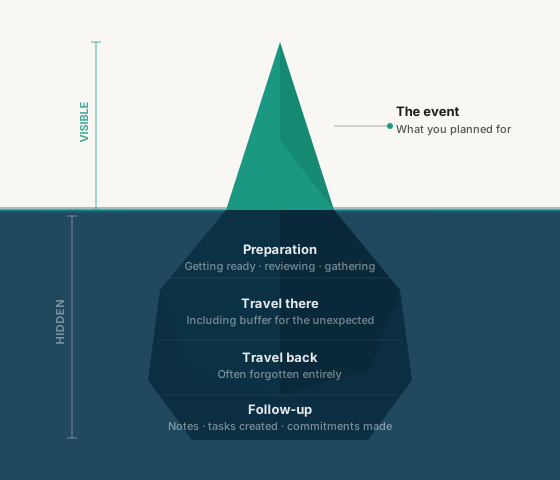
The hidden mass has four layers — preparation, travel there, travel back, and follow-up. ATEND gives you two tools to account for them.
For incidental time — getting dressed, gathering a document, brief decompression — use the prep time and follow-up time fields. Enter one number for each. ATEND places a muted before-segment and after-segment on the time strip and factors them into your sovereign window computation. A prompt fires when prep time begins: "Time to get ready for dinner with the Chens."
For travel and substantial blocks — a 90-minute drive, a meaningful preparation session — create an Underneath task instead. Underneath tasks are real schedulable items attached to the parent appointment. They appear on the time strip as full-color blocks. They have their own fit scores and complete independently. When the appointment moves, they move with it.
The rule of thumb: if the time is incidental, use the blob. If the time is substantial enough to deserve its own block on your schedule, make it an Underneath task. See Chapter 10 for the full Underneath task explanation.
ATEND's buffer zones handle the transition layers automatically. The blob fields and Underneath tasks handle the travel and follow-up. Together — buffer zones, blobs, and Underneath tasks — the full iceberg is accounted for. Your time strip shows what's genuinely available rather than just what's technically unblocked.