
Processing Your Inbox
Processing is the act of deciding what each captured item actually is and where it belongs. It's not complicated — there are six possible outcomes and the system walks you through one at a time. But it matters more than any other habit in ATEND, because it's the bridge between capturing a thought and actually doing something with it.
What processing means
The inbox is a holding area, not a destination. Everything that lands there is waiting for a decision. Processing is making that decision — quickly, one item at a time — so things move out of the inbox and into the right place in your system.
An inbox that never gets processed is costing you everything, because captured thoughts that never get resolved are still taking up space in your head. That's exactly what the capture system was supposed to fix. Most people find two or three short processing sessions a week — ten to fifteen minutes each — is enough to stay on top of it. The Weekly Architecture Session always includes an inbox-to-zero step.
How to open a processing session
Tap any item in your inbox list to open it, or swipe left to jump straight into the processing flow. The flow opens full-screen and walks through the steps one at a time — one question per screen. The badge count decrements the moment an item is resolved.
When you finish one item, the next slides up automatically. You can stop at any point and come back later — nothing is lost.
Step 0 — Does this still matter?
The first question is the fastest — and it does the most coaching work. Every item starts here.
The phrasing is deliberate. "Not really — toss it" is meaningfully easier to tap than "Delete." It gives explicit permission to let things go — which is one of the most common things ADHD inbox management needs. The Someday option means you never have to choose between "I'm dealing with this right now" and "it's gone forever."
Step 1 — Is this clear enough? (conditional)
The system checks whether what you captured sounds like an action. If it starts with a verb or a recognizable action pattern — "Call," "Email," "Need to buy" — you skip this step entirely and move straight to Step 2.
If it's a fragment — "water pump," "Jason," "birthday" — a rewrite screen appears:
Is this clear enough?
Make sure you'll know what this is later. A verb is usually a good start.
Edit the text and tap "Looks good." The system never blocks you — whatever you write is accepted. If the prompt fires when it shouldn't, one tap on "Looks good" with no change and you're through. The screen exists to catch the fragments that would be meaningless six days from now when they surface in your task list.
Step 2 — What kind of thing is this?
Four large tappable cards. The underlying distinction is agency — who is the engine that makes this thing happen?
The test you're running: does this thing depend on me to happen, or does it happen on its own? That's the line between Task and Appointment or Reminder. The line between Task and Project is whether it's a single action or a multi-step outcome.
Recurring tasks are not a separate type. If a task repeats, you'll answer that at the end of Path A — not here. Most of the time you're thinking "this is a task" before you realize it recurs, and the flow handles it that way.
Path A — Creating a task
Path A is the most common. When you choose Task, a four-screen flow walks through everything the system needs to surface it correctly. Each screen groups related questions — not to rush them, but because the grouping reflects what each decision is actually about.
A task with none of this information is inert. It can't appear in the Launchpad because the fit score has nothing to work with. The screens aren't busywork — they're the difference between a task that surfaces when it should and one that sits in the database doing nothing.
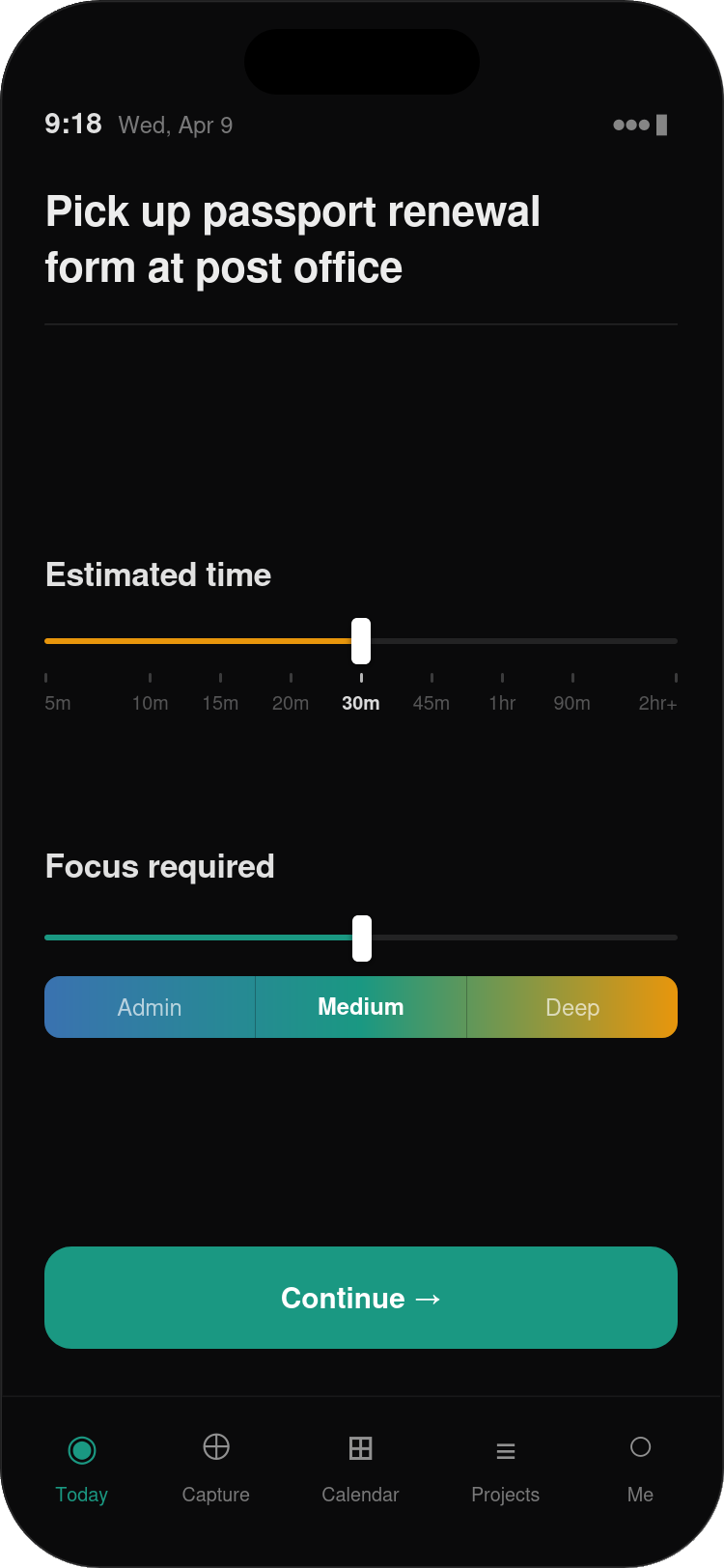
Screen 1 — Estimated time and focus required
Two sliders. Both are about the concrete resources this task requires — evaluated together by the fit score when matching tasks to your available capacity.
Estimated time — slide to your best guess: 5m, 10m, 15m, 20m, 30m, 45m, 1hr, 90m, or 2hr+. It doesn't have to be exact. The system calibrates against your actual completion times over time and gets better at accounting for the gap. But some estimate is required — a task with no time estimate can't be matched to available windows.
Focus required — Admin, Medium, or Deep. Not the objective difficulty of the task — the cognitive demand of engaging with it. A five-minute phone call can be Deep if the conversation is hard. A complex spreadsheet can be Admin if it's familiar routine work. This determines when the task surfaces relative to your daily energy level.
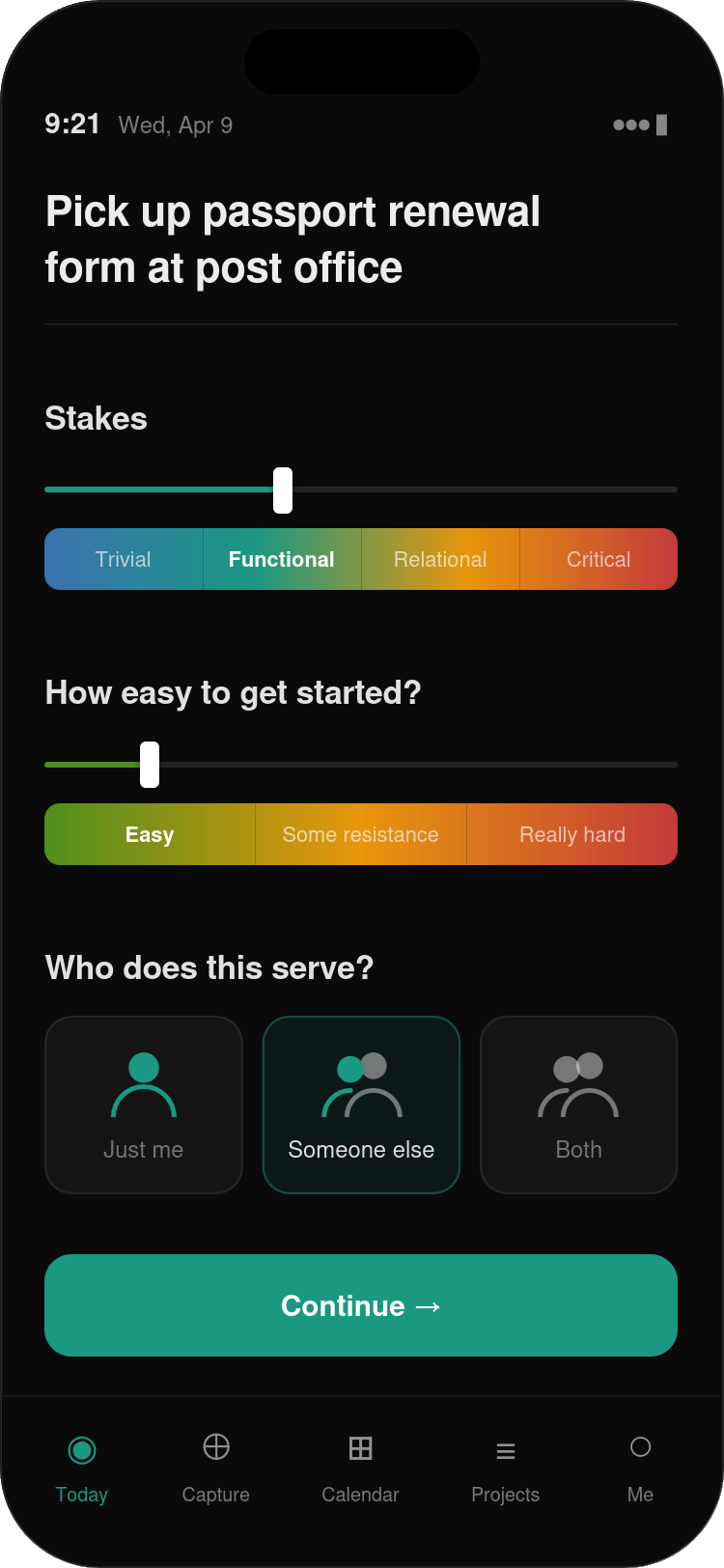
Screen 2 — Stakes, ease of start, and who it serves
Three questions about the weight and meaning of this task. They share a screen because they all answer the same underlying question: what does this task cost, and who does it affect?
Stakes — Trivial, Functional, Relational, or Critical. What happens if this doesn't get done? Higher-stakes tasks surface with more urgency in the fit score, particularly as time runs short.
How easy to get started? — Easy, Some resistance, or Really hard. Not difficulty — activation energy. A task with high resistance is suppressed when your energy is low. Knowing something is hard to start also makes the Activation Interview available earlier if the task begins to stall.
Who does this serve? — Just me, Someone else, or Both. Tasks that serve someone else surface with additional urgency — there's a human being on the other end, not just a to-do entry.
Screen 3 — Does this repeat? (conditional)
This screen only appears if the task recurs. If it's a one-time task, the system skips it entirely and moves to Screen 4.
When shown, you set the frequency, whether the next instance is anchored to the calendar date or to when you complete this one, and how many days in advance the task should enter your active pool. Most recurring tasks only need the frequency — the other options are available when the defaults don't fit.
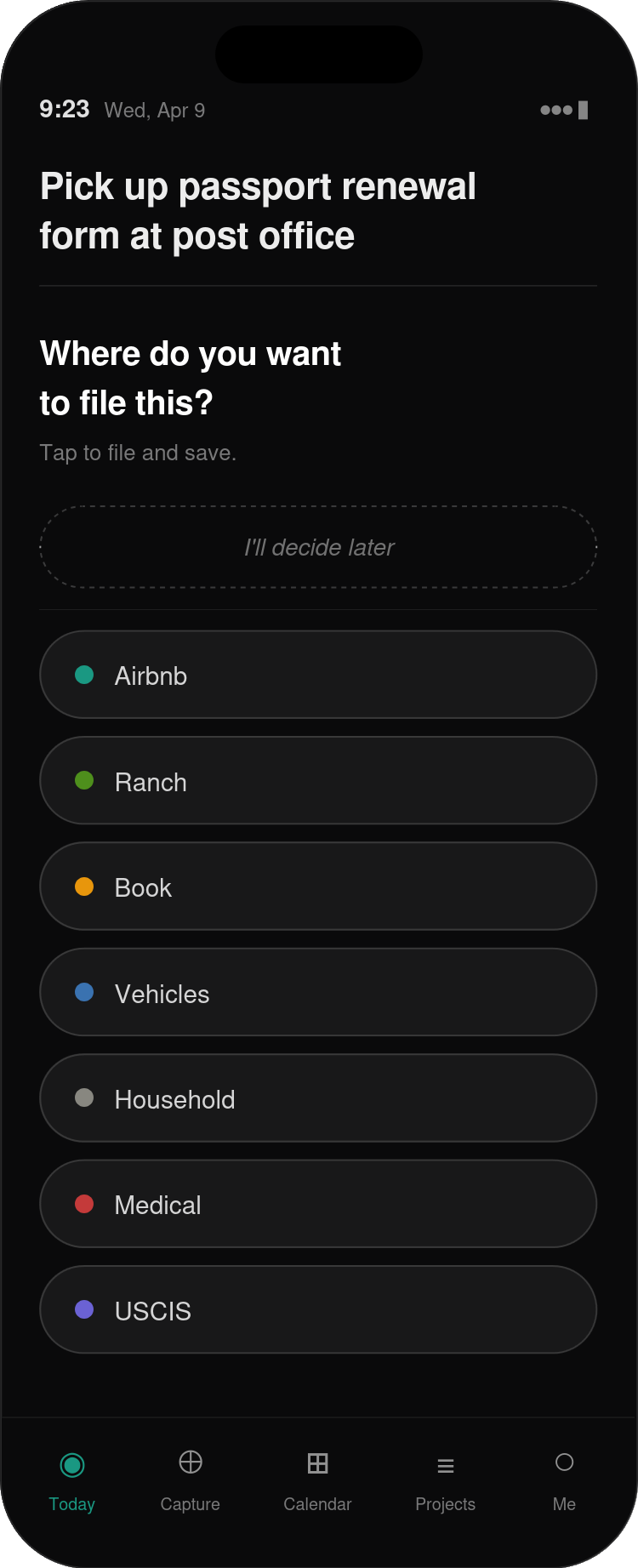
Screen 4 — Where do you want to file this?
The role picker. "I'll decide later" appears first, with a dashed border — it's a valid choice, not a fallback. Tapping any role files the task immediately and saves it. Tasks filed later surface in the Weekly Architecture Session's "File the Unfiled" step, where you can batch-assign roles in one short pass.
The role you select determines the color coding throughout ATEND and feeds the neglect detection system.
On due dates
Due dates are not part of the four-screen task flow. They're available from the task detail view after the task is created, but they're deliberately opt-in. Most tasks don't need a due date — prompting for one creates artificial urgency and trains you to treat everything as if it's overdue. Use due dates for tasks with real external deadlines. Leave them off everything else.
Paths B, C, and D
Path B — Reminder. A date you want to know about, with nothing to do. You set the date, an optional role, how far in advance you want to be notified, and whether the system should ask if you want to add a task when the reminder fires. Birthdays and anniversaries recur annually by default. Reminders don't consume sovereign time and don't appear on the time strip.
Path C — Appointment. A time-specific commitment that belongs on the calendar. You set the date, time, duration, and role. If the system detected date and time language in your capture — "dentist Thursday at 2pm," a forwarded meeting invitation — Appointment is pre-selected and the fields are pre-filled. You confirm or override. The appointment syncs to your connected calendar immediately and appears on the time strip with buffer zones on both sides.
Path D — Project. Inbox-flow project creation is intentionally minimal — two questions: what does done look like, and which role? That's it. The project is created and you get one follow-up prompt: "Add a first action now" or "I'll come back to it." The full project setup — horizon, deadline, weekly outcome, quick-build of tasks — is available from the Projects tab when you're ready to plan it properly. See Chapter 11 for the complete project system.
When the inbox gets away from you
There will be weeks where you don't keep up. Most productivity systems respond by showing you a long list of everything you haven't processed — exactly the view that produces ADHD paralysis. ATEND responds differently.
When your unreviewed count exceeds 10, a "Clear the deck" button appears at the top of the inbox. Tapping it presents three options on a single screen:
Items marked Keep during a quick pass move to the Processing Queue — a quieter secondary indicator in the inbox. They're confirmed real and waiting for full processing. They surface prominently during the Weekly Architecture Session's inbox-to-zero step.
After processing
The moment a task is processed and marked active, it's eligible for the Launchpad. The system doesn't wait — the next time the Now list renders, your new task is in the pool. If it fits your current energy, time window, and fits the fit score, it may appear immediately.
The inbox item itself doesn't disappear from the database. It's retained as a provenance record — evidence of when and how the item entered the system, including the original voice note if that's how it was captured. You'll never see it again in normal use, but the record is there if you ever need it.
In the next chapter, we'll look at the morning setup — the brief three-screen ritual that opens each workday and sets the direction for everything that follows.