
The Launchpad
The Launchpad is where your day actually happens. You'll see it more than any other screen in ATEND — it opens every morning when your workday begins and stays with you until you close the day in the evening. Learning to read it takes about five minutes. After that, it becomes the most natural thing in the world.
What you're looking at
The first time you see the Launchpad, you might notice what isn't there. There's no scrolling list of everything you need to do. There are no red overdue dates staring back at you. There's no inbox count badge telling you how far behind you are.
What you see instead is a screen organized around a single question: what should I do right now, given who I am at this moment? Everything on the Launchpad is in service of that question.
The screen has four distinct regions, arranged from top to bottom in order of importance. Let's go through each one.
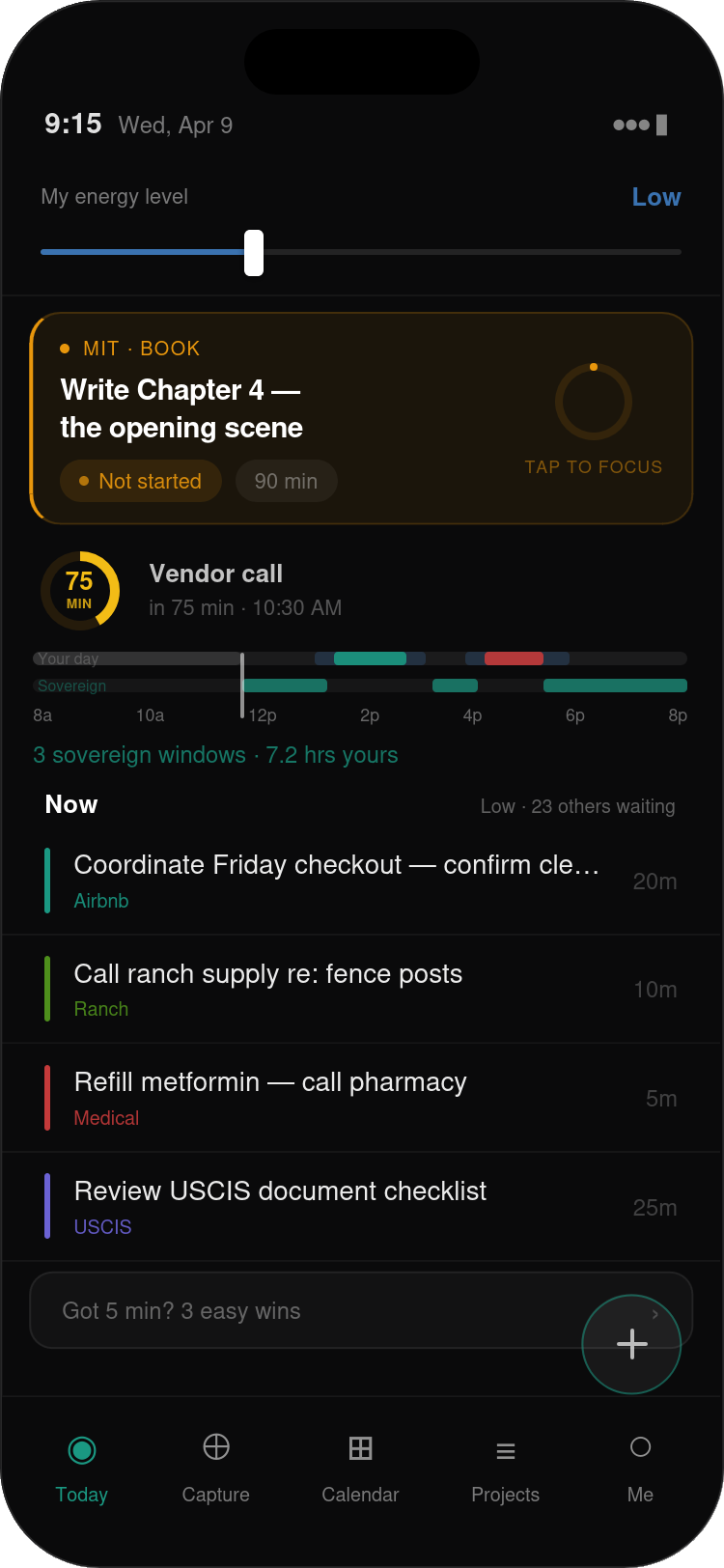
The MIT banner — your anchor for the day
The first thing your eye lands on — deliberately — is the Most Important Task banner. It occupies the top third of the Launchpad and it never moves. One task. One commitment. The thing that, if you do nothing else today, makes this a successful day.
You set your MIT either at the end of the previous day during the daily close, or at the start of the current day during your morning setup. Either way, by the time the Launchpad opens, the decision has already been made. You don't have to think about it. You just have to start.
The MIT banner shows you four things: the outcome (written in your own words), the role it belongs to (indicated by the role color and name in the corner), its current status — Not started, In progress, or Done — and the time you estimated for it.
To the right of the title is a ring. When you haven't started the MIT yet, the ring is empty. As you work on it in focus sessions, the ring fills. When it's complete, the ring fills completely and the banner shifts to a done state with a small celebration moment before returning you to the Now list.
Tap the MIT banner to start a focus session on it. This is the most important tap in the entire app. Everything else is in service of this one action.
If you look at the bottom right corner of the banner, you'll see "tap to focus" in small text. That's your invitation. On days when you're not sure where to start, the answer is almost always: start here.
The time strip — your day, made visible
Directly below the MIT banner is a thin horizontal strip. It looks simple. It is one of the most carefully designed elements in the application.
The time strip is a map of your day. The left edge is the start of your workday. The right edge is the end — or later, if you have events that run past it. The strip represents every hour between those two points, and it shows you at a glance how that time is divided, what's committed, what's elapsed, and what genuinely belongs to you.
The white vertical line is where you are right now — the now-line. As the day progresses, it moves from left to right. Everything to the left of it is gone. Everything to the right is still available.
The five elements of the time strip
The strip is composed of five visually distinct layers, each rendered in a specific color. Here's what each one means:
-
Elapsed time — dimmed whiteThe portion of the strip to the left of the now-line. This time is gone. The dimmed color is intentional — it's not failure, it's just the past. You can't get it back, and the system doesn't make you feel bad about it. It simply marks it as done.
-
Sovereign windows — tealThese are the segments that genuinely belong to you. No meetings. No appointments. No obligations. Time you could direct toward your work, your goals, your book, your ranch — whatever is yours. The teal color is consistent throughout ATEND as the color of things that serve you. The summary below the strip tells you how many sovereign windows remain and how many hours they add up to.
-
Committed events — role colorAppointments, meetings, and time blocks appear as solid-colored segments in the color of their role. A medical appointment appears in the Medical role color. A vendor call linked to your Airbnb role appears in Airbnb green. The color system is the same throughout ATEND — once you know your role colors, you can read the time strip at a glance.
-
Buffer zones — muted blueBefore and after every committed event, ATEND reserves a small buffer of time — ten minutes before and fifteen after by default. These zones are shown as a semi-transparent blue overlay that extends slightly beyond the event block on both sides. Buffer zones are not wasted time. They're transition time: getting to the appointment, wrapping up the call, returning to your headspace. They're real, and the system accounts for them. A ten-minute task does not belong in the fifteen minutes before a meeting. The buffer catches that.
-
The now-line — whiteThe thin vertical white line that marks your current position in the day. It moves from left to right as time passes. The sovereign window calculation always starts from the now-line — it shows you what's available from this moment forward, not from the start of the day. Whatever is behind the now-line is history.
Reading the time strip in practice
Look at Figure 5.1 again. The now-line is about a third of the way across the strip, putting us at mid-morning. There are three teal sovereign windows visible: one short one between now and the first event, a brief one between the two events in the afternoon, and a longer one that runs from the second event to the end of the day. The summary beneath the strip reads "3 sovereign windows · 7.2 hrs yours."
That's a genuinely good day. Seven hours of available directed time, organized into three blocks. The first block is the most valuable — right now, before any obligation arrives. The system knows this and has surfaced the MIT as the anchor task for exactly that reason.
The circular countdown above the strip — "75 MIN" with "Vendor call · in 75 min · 10:30 AM" — shows the time until your next commitment. Not a clock time. Not "Vendor call at 10:30am." Just: how many minutes until the next thing you have to show up for. That's how ATEND talks about time throughout. Countdowns, not clocks. The distance from now is more useful than the position on a dial.
A sovereign window has to be at least 20 minutes to count. A 10-minute gap between two meetings is transition time, not directable time — the strip shows it as a gap but doesn't highlight it in teal. The system is honest about what's actually usable.
The Now list — why these tasks and not others
Below the time strip is your Now list. A maximum of five tasks. Almost certainly not the five most urgent things in your system. Almost certainly not the five oldest. These are the five tasks that best fit who you are right now, in this moment, with the time you have available.
When ATEND first shows you the Now list, the most natural question is: how did it pick these?
The main factors
ATEND considers several things about each task and several things about your current situation and finds the best matches between them. The factors it weighs most heavily are:
-
1Your energy levelYou set this in the morning setup. A deep work task — something requiring sustained concentration — is not a good match for a fragmented or low-energy afternoon. An admin task — making a call, sending an email, filling out a form — is a great match. The system never shows you a 90-minute writing session when you're running on fumes. It saves it for when you can actually do it justice.
-
2Time available before your next commitmentA task estimated at 45 minutes will not surface prominently when you have 20 minutes before a meeting. A 10-minute task will. The system is trying to protect you from the ADHD trap of starting something you can't finish — hyperfocusing through a commitment, or experiencing the frustration of a false start.
-
3Your Big Three outcomes for the weekTasks connected to your Big Three get a meaningful boost. This is the mechanism that keeps your weekly intentions from evaporating into reactive work. If you said your most important outcome this week is finishing Chapter 4 of your book, tasks in service of that goal surface more often — not by accident, but because the system is actively advocating for your stated priorities.
-
4Urgency and stakesDue dates, project deadlines, and the relational or functional weight of a task all contribute. Something that affects another person — a commitment you've made, a coordination that someone else is counting on — surfaces with more weight than something that only affects you. Not as a judgment, but as an honest prioritization of what has real-world consequences if it slips.
Each task in the Now list shows its title, a colored bar on the left edge in the role's color, the role name below the title in that same color, and the estimated time on the right. That label is there to remind you that this one has a human being attached to it, not just a to-do entry.
The tasks below the threshold — the other 23 or 47 or however many you have — are not gone. They're waiting. As your energy changes, as your available time changes, as tasks get completed and new ones become relevant, the list recalculates. The right task for right now will surface when right now arrives.
What the Now list doesn't do
It doesn't give you a comprehensive view of everything you're responsible for. If you want that, it's available in the Projects and task list views — but it's not here, and that's intentional. The comprehensive view is the thing that overwhelms people with ADHD into inaction. The Now list is the opposite: a small, confident, well-reasoned selection of what's worth doing right now.
The Quick Admin drawer
At the bottom of the task list, below your five Now tasks, is a collapsed drawer labeled something like "Got 5 minutes? 3 easy wins." Tap it and it expands to show a small set of ultra-quick tasks — things estimated at five minutes or less that require minimal mental energy.
The Quick Admin drawer exists for the gaps. The eleven minutes before a meeting. The moment after you complete a focus session when you're not ready for another deep dive. The end of the day when your energy is low but you're not quite done yet.
These tasks are collapsed by default because they shouldn't distract from the main Now list. When your energy is high and you have time, ignore the drawer and work on what matters. When you need a small win or you're between things, open it.
The drawer also serves as a landing zone for short due-today tasks added mid-day. If you create or process a task during the day, give it a due date of today, and the time estimate is under 15 minutes, ATEND doesn't create a formal time block — it drops the task into Quick Admin instead and adds a small urgency indicator so it stands out. The next time you open the Launchpad it's right there, marked as due today, ready to be knocked out in a gap.
Changing the order
The Now list is ordered by the system. Most of the time, you'll find it agrees with your own instinct about what to do first. But sometimes you just want to do the third thing before the first thing. That's allowed.
Long-press on any task row and a drag handle appears on the right edge. You can drag to reorder the list. The new order holds for the rest of today. Tomorrow, or on the next recalculation, the system resumes control.
When manual ordering is active, a small indicator appears below the list: Custom order — resets tomorrow. It's not a warning. It's just honest. The system is telling you it knows, it's fine with it, and it will pick back up automatically.
Manual reordering changes the display sequence of tasks that have already qualified for the Now list. It doesn't change which tasks qualify — a task below the relevance threshold still won't appear even if you'd like it to. If a task isn't surfacing and you think it should be, opening its detail view and adjusting its fields (energy, role, stakes) is more effective than trying to force it in.
The coaching pulse
At the very bottom of the Launchpad, in small italic text, is a single line of observation. It might say: MIT open · Vendor call in 75 min · 7.2 sovereign hrs today. Or: Book role quiet this week — haven't started the MIT yet. Or simply: Good morning. You have 4.5 hrs of sovereign time today.
This line is the coaching pulse. It's the system's one opportunity per screen to offer a piece of useful context — not a notification, not an alarm, just a quiet observation that a thoughtful assistant might make if they were watching your day alongside you.
The coaching pulse draws from several sources: your MIT status, your next upcoming event, your sovereign time summary, your role activity patterns, and any flags the system has noticed (a task deferred too many times, a role that's gone quiet, a deadline approaching). It surfaces the single most relevant observation and says nothing else.
You'll probably find yourself glancing at it without even thinking about it. That's the intention. It's there when it has something worth saying. It stays quiet when it doesn't.
Putting it all together
The Launchpad is designed to be read in about five seconds. You open it, your eye goes to the MIT banner — you know what matters most. It goes to the time strip — you know how much time you have. It goes to the Now list — you know what to do next. You tap the MIT or the first task on the Now list and you start.
On a good day, that's all you need to do. The system handles the rest: keeping track of what's waiting, updating the Now list as your context changes, noting what you've done, holding what's coming. Your only job is to be present for the task in front of you.
In the next chapter, we'll go into Focus Mode — what happens when you tap that task and the rest of the world steps aside.