
Focus Mode
Focus Mode is what happens when you stop deciding and start doing. It's the simplest screen in ATEND — and the most important one. Everything else in the system exists to bring you here: one task, one timer, everything else out of view.
Starting a focus session
From the Launchpad, tap any task. That's it. The screen clears, the world steps back, and Focus Mode opens.
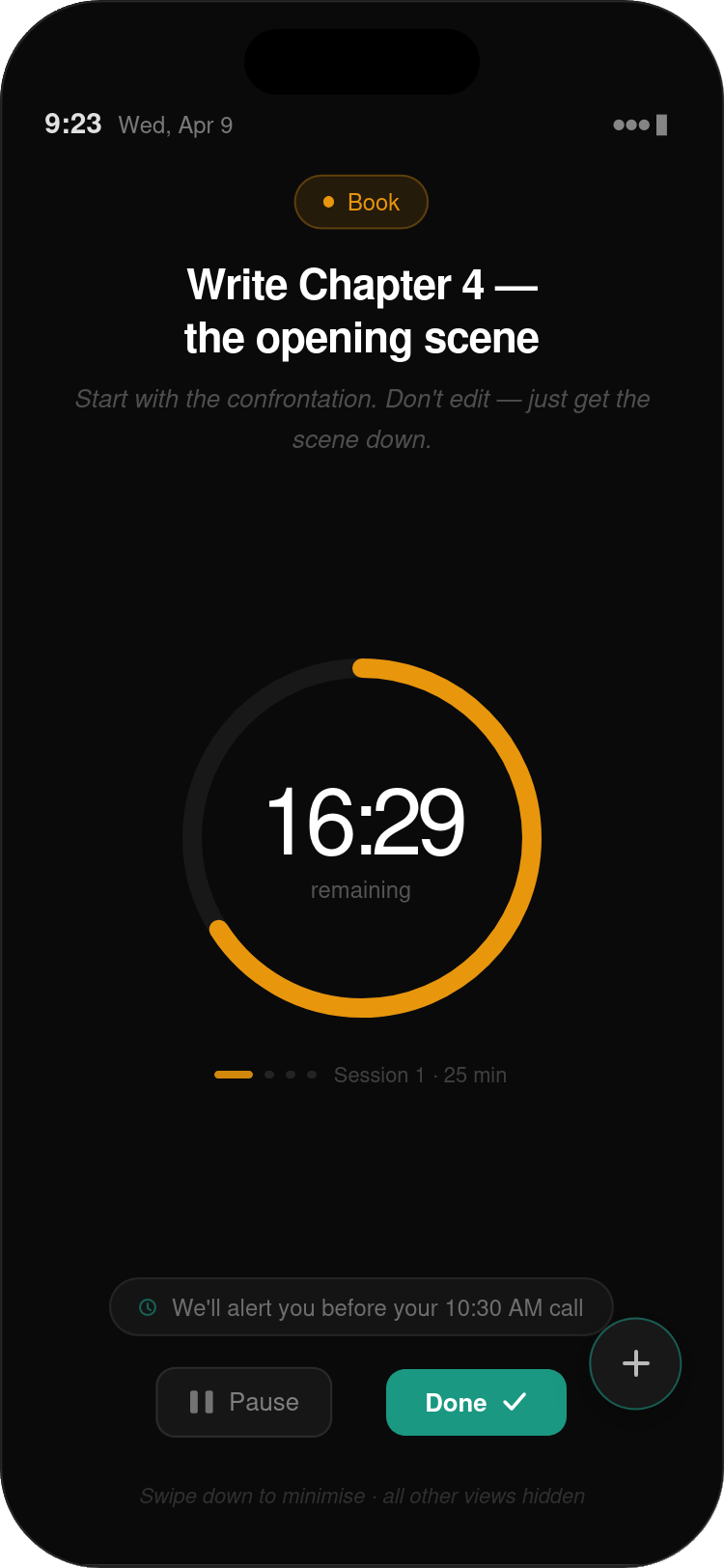
What you see is intentionally minimal. At the very top, a small role pill identifies which area of your life this task belongs to. Below it, the task title sits large and centered — written in your own words, the way you described the work when you captured it. Below the title, any notes you attached appear in italic as a quiet reminder of context. Below that, the ring timer. Nothing else competes for your attention. No other tasks. No inbox count. No navigation bar. A footer note confirms it: "Swipe down to minimise · all other views hidden."
Before the timer starts, the system does one quick check — it looks at your time estimate for the task and compares it to the time available before your next calendar event. If you've said the task will take 90 minutes and you have 35 minutes until a meeting, it surfaces a gentle note:
"This task usually takes you about 90 minutes. You have 35 minutes before your vendor call. Want to set a 30-minute timer and pick up where you leave off?"
You can accept the suggested time, set your own, or dismiss the note and start with your original estimate. The check is a courtesy, not a gate. You're always in control of what you do.
The timer
The ring is your timer. It starts full and depletes as your session runs, colored in your role's color — amber for Book, teal for Airbnb, and so on. The time remaining appears in the center in large numerals with "remaining" below it. The default session length is 25 minutes. You can change this in settings to whatever length works best for you.
Beneath the ring, a row of dots tracks your sessions — the filled dot is the current session, empty dots are sessions ahead. "Session 1 · 25 min" tells you where you are in the work. A digital countdown draws the eye and produces timer anxiety that's counterproductive for ADHD. The ring depletes slowly and smoothly — you notice it in your peripheral vision without fixating on it.
If you're in the middle of a flow state and don't want to be interrupted when the timer ends, you can disable the end-of-session chime in settings. The ring will still deplete and the completion prompt will still appear — it just won't make noise.
Relevant files
At the bottom of the Focus Mode screen, you may see a small panel showing a file or document. This is ATEND surfacing something it thinks is connected to the work you're doing — a note attached to the task, a document that was part of the inbox item this task came from, or a recently completed related task that might be useful context.
The panel appears automatically when ATEND finds something relevant. It doesn't always appear — only when there's something genuinely useful to show. Tap the panel to open the document. Tap the small X to dismiss it for this session.
When the timer ends
When the ring depletes, a soft chime plays and the screen shifts to an end-of-session prompt. It doesn't close Focus Mode. It doesn't throw you back into the Launchpad. It simply pauses and asks a question:
Three options. Here's what each one does:
If you're in the middle of something good when the timer ends, tap "Keep going" without hesitation. The session structure is a scaffold to help you start and stay on track — it's not a commitment to stop every 25 minutes. Use it the way it serves you.
If you leave the app mid-session
Life happens. A call comes in. Someone knocks. You need to check something quickly. When you send ATEND to the background mid-session, the timer keeps running for up to five minutes. If you come back within five minutes, your session continues as if nothing happened. No interruption is recorded.
If you're gone for more than five minutes, the session closes automatically. When you return, the screen shows:
"Your focus session ended 12 minutes ago. Want to start a new one?"
Three options again: start a new session, log that you kept working anyway, or mark the task done if you finished it while away.
The five-minute grace period exists because brief interruptions — glancing at a message, checking the stove — are part of real life and shouldn't fragment your session record unnecessarily. The cutoff at five minutes is a system constant. It isn't adjustable, because the distinction between "quick check" and "left the work" is genuinely meaningful. Beyond five minutes, something else happened, and the system recognizes that honestly.
ATEND measures declared focus time — the time you spent actively in Focus Mode. It doesn't measure time you spent thinking about the task in the shower, or working on it in a notebook, or doing it on the phone. Those are real contributions, but ATEND can't see them. The self-reported time adjustment at task completion (below) is how you account for work done outside the app.
Completing a task
You can mark a task complete in two ways: by tapping "This task is done" at the end of a session, or by tapping the checkmark on the task's detail view at any point — whether or not you've been in Focus Mode. Either way, the same completion sequence runs.
It happens in five steps, and the whole thing takes about fifteen seconds:
easier than expected?
your working patterns.
that actually take?
How ATEND learns your working patterns
Every completed task feeds a small but important system running in the background: your personal time estimation calibration.
Most people with ADHD are poor estimators of time. Not universally — some are quite accurate for certain types of work — but the mismatch tends to be systematic. Deep work tasks get underestimated. Admin tasks get overestimated. The pattern is consistent enough that, over time, it can be measured.
After you've completed enough tasks in each energy category — roughly twenty or more — ATEND will have built a personal accuracy profile. It uses this in two ways.
First, on the Progress Dashboard (Chapter 17), you'll see a plain-language summary: "You tend to underestimate deep work tasks by about 60%. Your admin estimates are pretty accurate." This is information, not criticism. Most people find it genuinely useful — it explains a lot about why their days don't go the way they planned them.
Second, the system uses your calibration profile when checking whether a task fits your available time before you start a session. If you say a task will take 60 minutes and your history suggests deep work typically runs 60% longer, the pre-session check uses 96 minutes — not 60 — when evaluating whether to show a warning. The system is learning to be realistic about you, specifically.
The calibration is advisory, not corrective. ATEND never automatically changes your time estimates. You enter what you think, the system notes what actually happened, and over time it gets better at anticipating the gap. Your estimates are yours. The system just holds an honest record of how they've played out.
Completing a task without using Focus Mode
Not every task needs a formal focus session. Some things get done in the middle of something else — a phone call while driving, a quick errand handled on the way somewhere, a decision made in a meeting. ATEND doesn't require you to have been in Focus Mode to complete a task.
From the Launchpad or the task detail view, tap the checkmark on any task. The same completion sequence runs, but the time confirmation step looks slightly different — instead of showing logged session time, it asks: "How long did that actually take?" with a simple time entry. Enter what feels honest and move on.
This data still feeds your calibration. Self-reported time is flagged differently from session-measured time, but both contribute. The system knows the difference and accounts for it.
What Focus Mode is really for
I want to say something directly about why Focus Mode exists the way it does, because it's easy to think of it as just a Pomodoro timer with a nicer interface. It's more than that.
The hardest moment in any task — for anyone, but especially for people with ADHD — is starting. The research on this is clear. Activation is the barrier. Once you're in the work, the work tends to continue. The problem is the gap between "I should do this" and "I am doing this."
Focus Mode is designed to close that gap as fast as possible. One tap from the Launchpad. One task on the screen. Everything else gone. No decisions about what order to do things in, no reminders of everything else that's waiting, no visual noise competing with the work in front of you. Just the task and the timer.
The timer itself is a form of commitment — not a harsh one, but a real one. When you tap "Keep going" at the end of a session, you're recommitting for another 25 minutes. That recommitment is easier than the original commitment. The inertia of work already in progress carries you forward.
The completion sequence, with its small celebration, is not decorative. The ADHD brain often has a blunted reward response — the satisfaction of finishing something doesn't land the way it does for other people. The ring filling, the animation, the brief acknowledgment that something real happened — these are designed to make completion feel like something, because it should.
In the next chapter, we'll look at what to do when a task doesn't start cleanly — when you open Focus Mode and find yourself unable to begin, or when a task has been sitting in your Now list for days and something about it feels stuck.